sk-). Keep it handy.Add a new provider
In 9Router, open Providers and click + Add OpenAI Compatible.

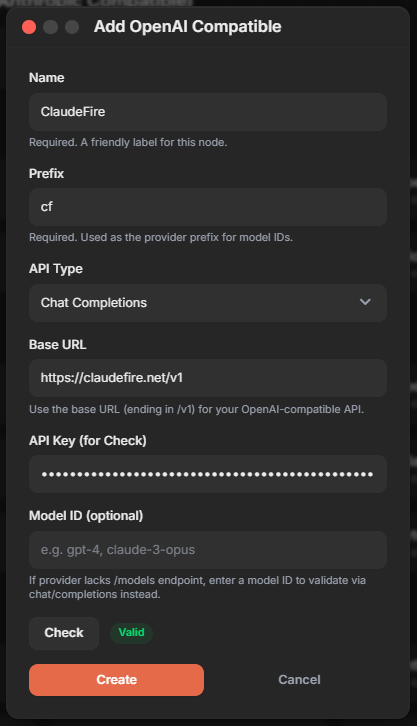
Fill in the provider details
Set:
• Name: ClaudeFire
• Prefix: cf
• API Type: Chat Completions
• Base URL: https://claudefire.net/v1
• API Key: paste your sk-... key
Click Check → it should turn Valid → then Create.
Provider created
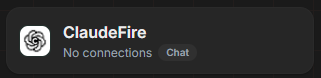
The ClaudeFire provider now appears in your list (still showing No connections).
Open it & add an API key
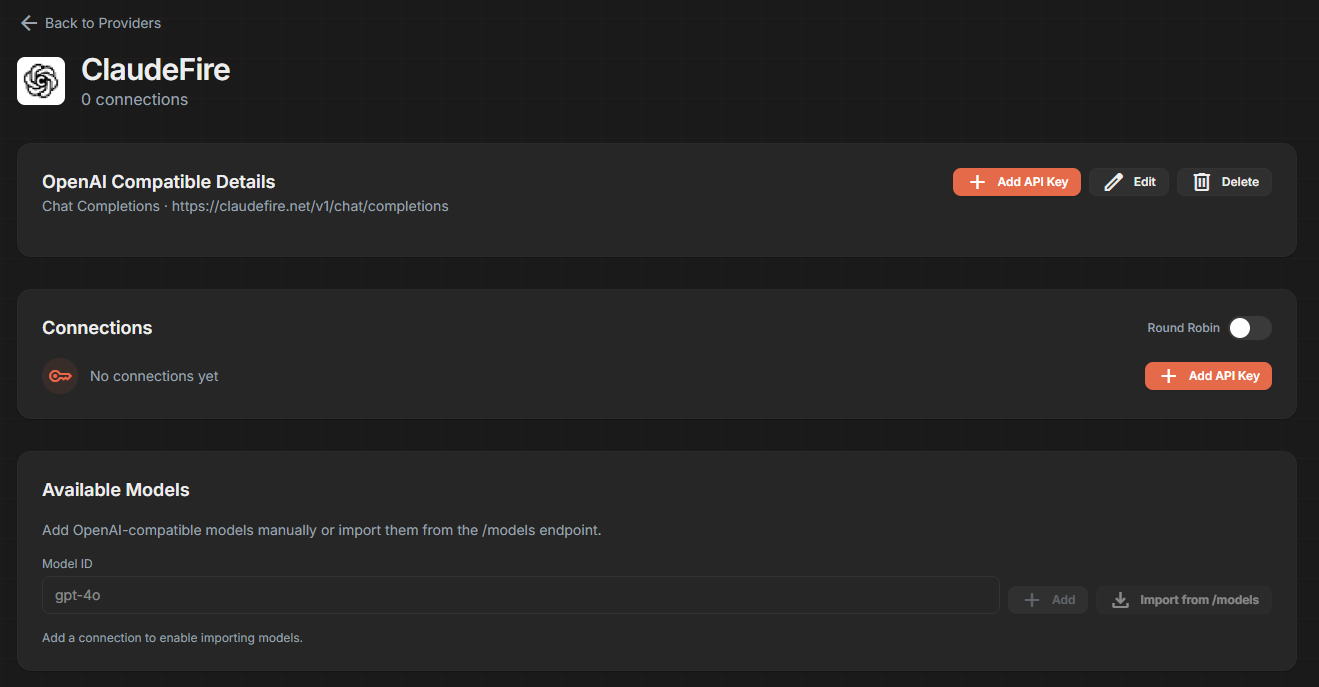
Open the ClaudeFire provider, then click + Add API Key to create a connection.
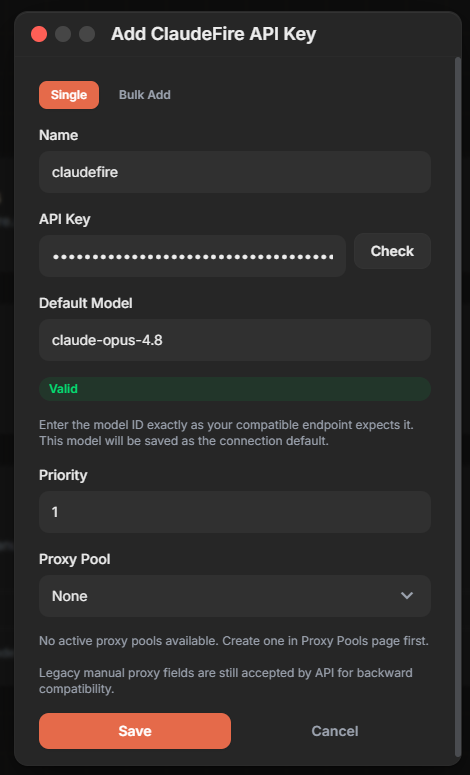
Enter your key & default model
In the dialog:
• Name: claudefire
• API Key: paste your sk-... key → click Check
• Default Model: claude-opus-4.8
Wait for Valid, then Save.
Connection is active
The provider now shows 1 connection with status active. 🎉
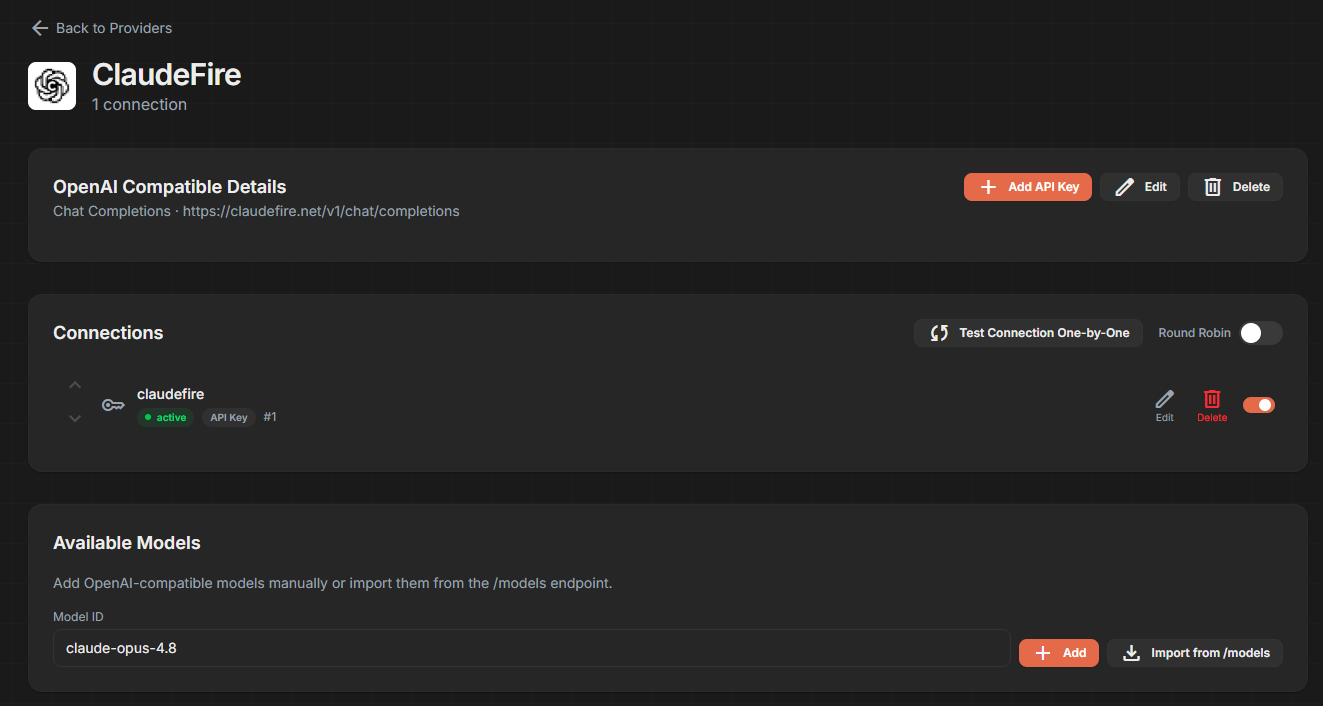
Add the models
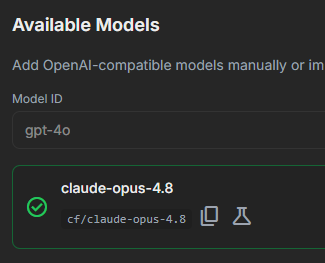
Under Available Models, click Import from /models to pull them automatically — or type a model ID (e.g. claude-opus-4.8) and click Add.

Done — start using it
Your model is ready as cf/claude-opus-4.8. Select it in any tool connected to 9Router and start chatting.